

High-resolution manuscript images are at the heart of the CSNTM Digital Manuscript Database. These images allow you to engage directly with the physical witnesses to the New Testament, examining layout, script, and features that cannot be captured through metadata alone.
Our new image viewer is IIIF-compliant, meaning it follows the International Image Interoperability Framework standard. This allows for deep zoom functionality, improved performance, and compatibility with other IIIF-supported research tools and platforms.
This tutorial will walk you through how to navigate manuscript images, use viewing tools effectively, and study images with confidence.

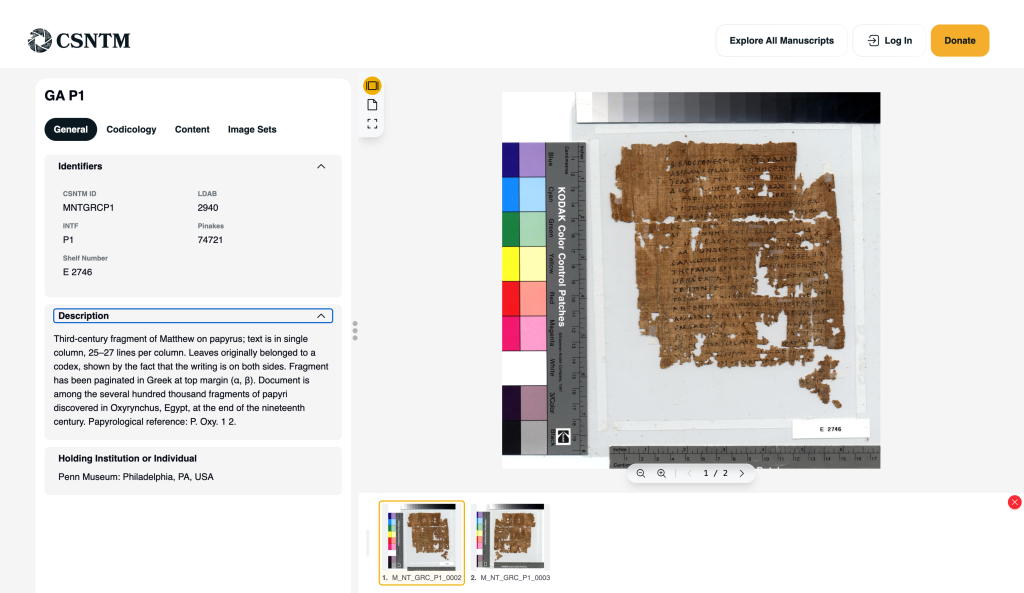
Accessing Manuscript Images
You can access manuscript images in several ways:
- Opening a manuscript and selecting an image
- Clicking a manuscript card in Interactive View
- Opening a saved manuscript from one of your custom lists
Once an image is selected, it will load in the image viewer.
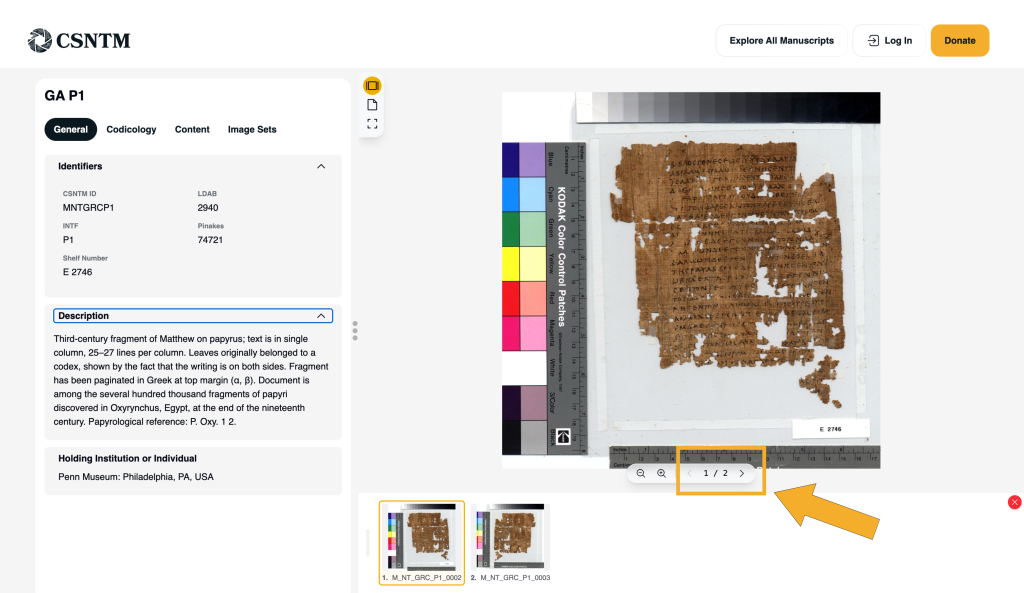
Navigating Between Images
Most manuscripts contain multiple images representing different folios or pages.
Within the image viewer, you can:
- Move forward or backward through images using navigation arrows
- Scroll through image thumbnails, when available, to jump to a specific folio
This allows you to move sequentially through a manuscript or quickly locate a particular section.
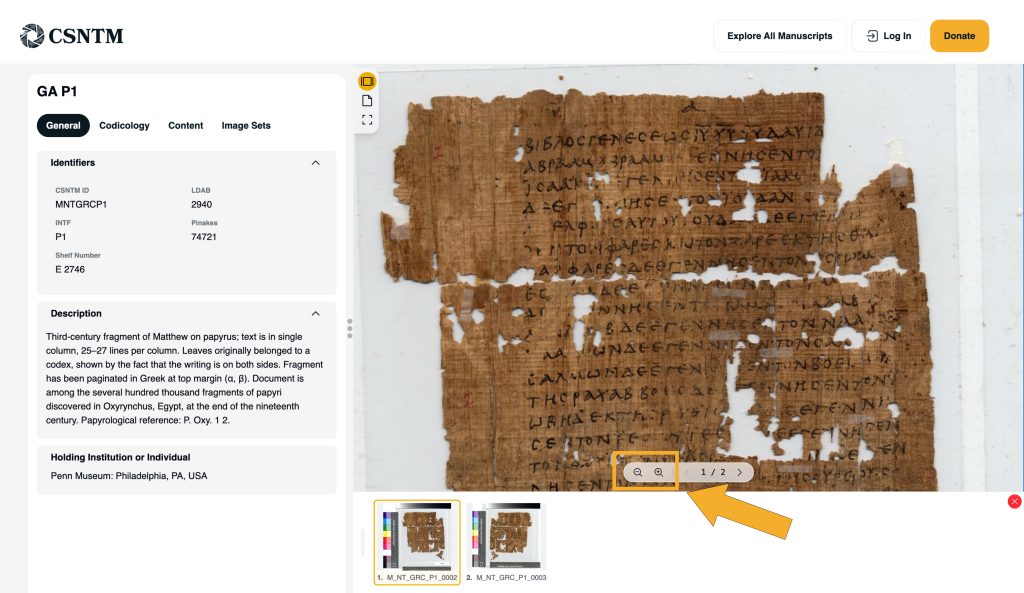
Zooming and Panning
To study details, the viewer allows you to zoom and pan within an image.
- Use zoom controls or trackpad/mouse gestures to zoom in and out
- Click and drag to pan across the image while zoomed in
- To expand or minimize the detail panel on the left side of the screen, drag the three-dot divider at the center of the layout or use the arrow keys on your keyboard.
These tools make it possible to examine fine details without losing your place.
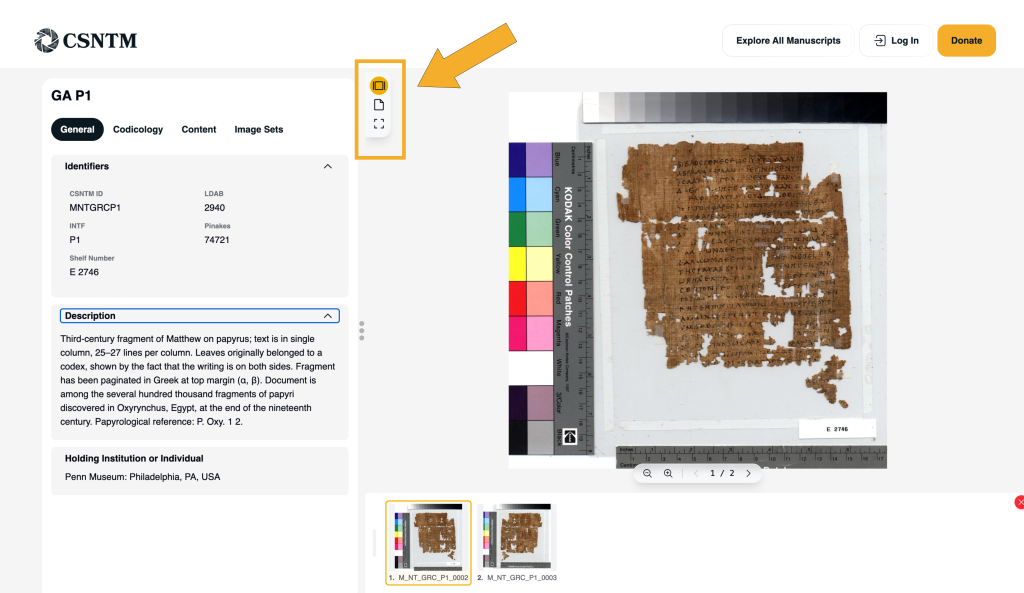
Customizing Your Viewing Experience
The image viewer includes several tools that allow you to adjust how manuscripts are displayed and studied. These options help you tailor the workspace to your research needs—whether you are scanning quickly or conducting detailed visual analysis.
The controls are located in the top-left corner of the viewer.
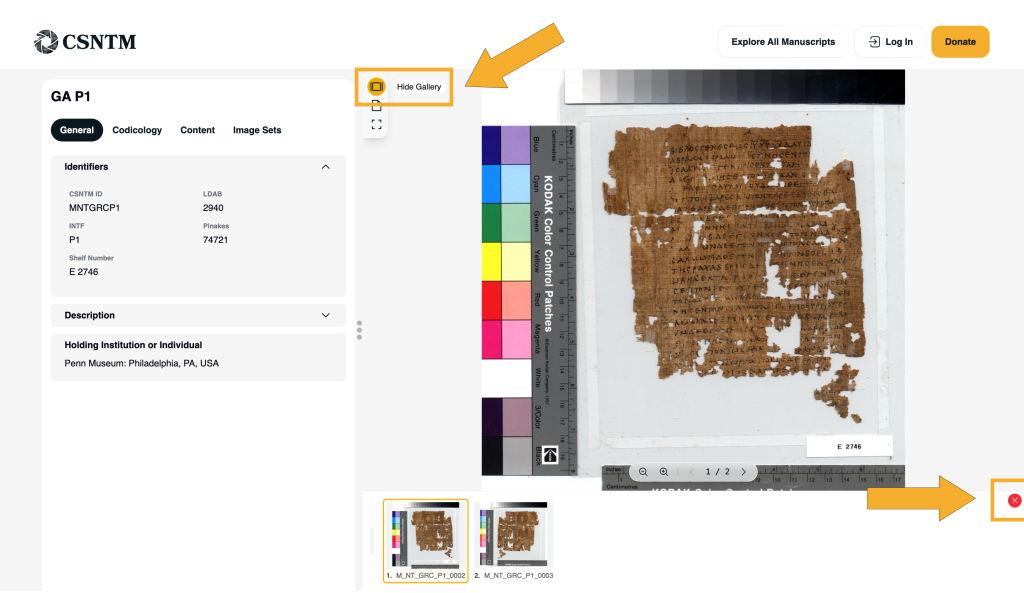
Gallery View
The Gallery View icon allows you to show or hide the row of thumbnail images at the bottom of the viewer.
- When visible, the thumbnail gallery makes it easy to jump quickly between pages.
- When hidden, the viewer provides a cleaner workspace with more room for detailed study.
You may also hide the thumbnail gallery by clicking the red “X” button located in the top-right corner of the thumbnail panel itself.
This option is especially helpful when working on smaller screens or focusing closely on a single image.
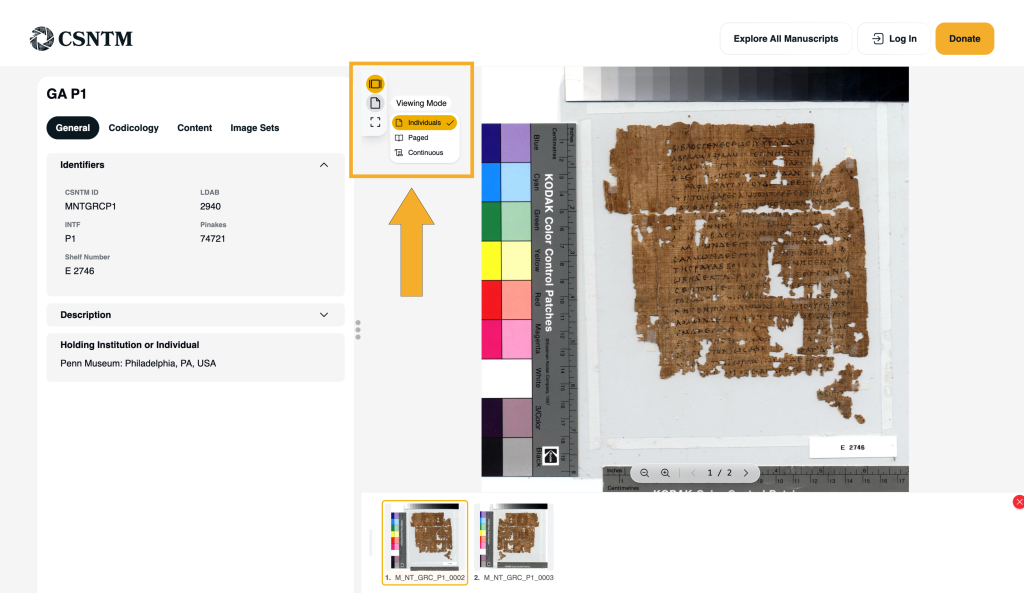
Viewing Modes
The Viewing Mode icon allows you to adjust how manuscript pages are displayed. You may choose from three layout options:
- Single Page: Displays one page at a time, ideal for focused examination.
- Paged (Book View): Displays two pages side by side, simulating a traditional book layout. In this mode, you can adjust page pairing to create a more accurate representation of the manuscript’s original presentation.
- Continuous: Displays multiple pages in a continuous vertical scroll, allowing you to move smoothly through an entire sequence of images.
Each viewing mode is designed to support different types of study, from careful page-by-page analysis to broader visual review.
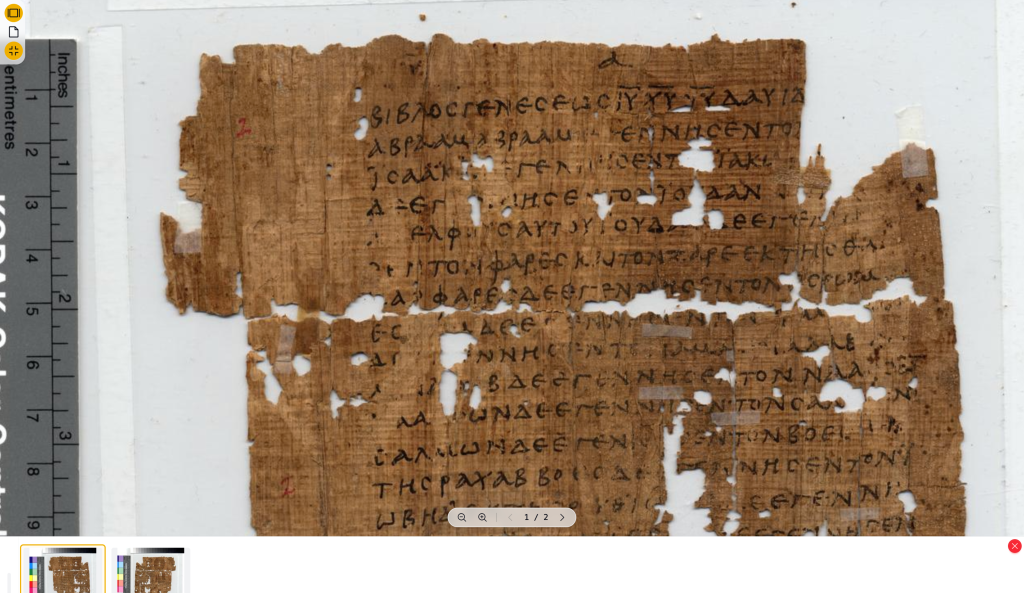
Full Screen Mode
The Full Screen icon expands the image to fill your entire screen.
- Click the full-screen icon in the top-left corner of the image viewer.
- The image will expand to fill your screen.
- Exit full screen at any time to return to the standard view.
Full-screen mode is ideal for extended visual analysis or presentations.
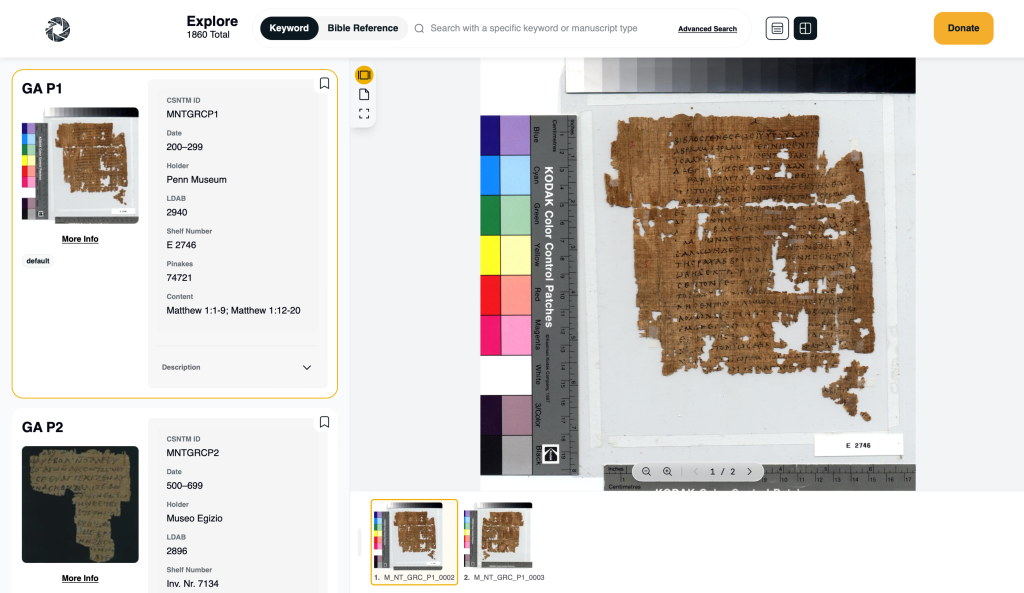
Studying Images in Interactive View
When using Interactive View, image navigation becomes even more efficient:
- Click different manuscript cards to instantly load their images
- Switch between manuscripts without leaving your results or list
- Keep context visible while comparing visual features
This approach is especially useful for comparative study across multiple manuscripts.
What to Do Next
Once you’ve foImage navigation is most powerful when combined with other database features.
Next, try:
- Saving manuscripts to a custom list for focused image study
- Using Advanced Search to locate manuscripts with overlapping content
- Comparing images in Interactive View for faster visual analysis
In the next tutorial, you will learn how to optimize your viewing experience using the Interactive View.