
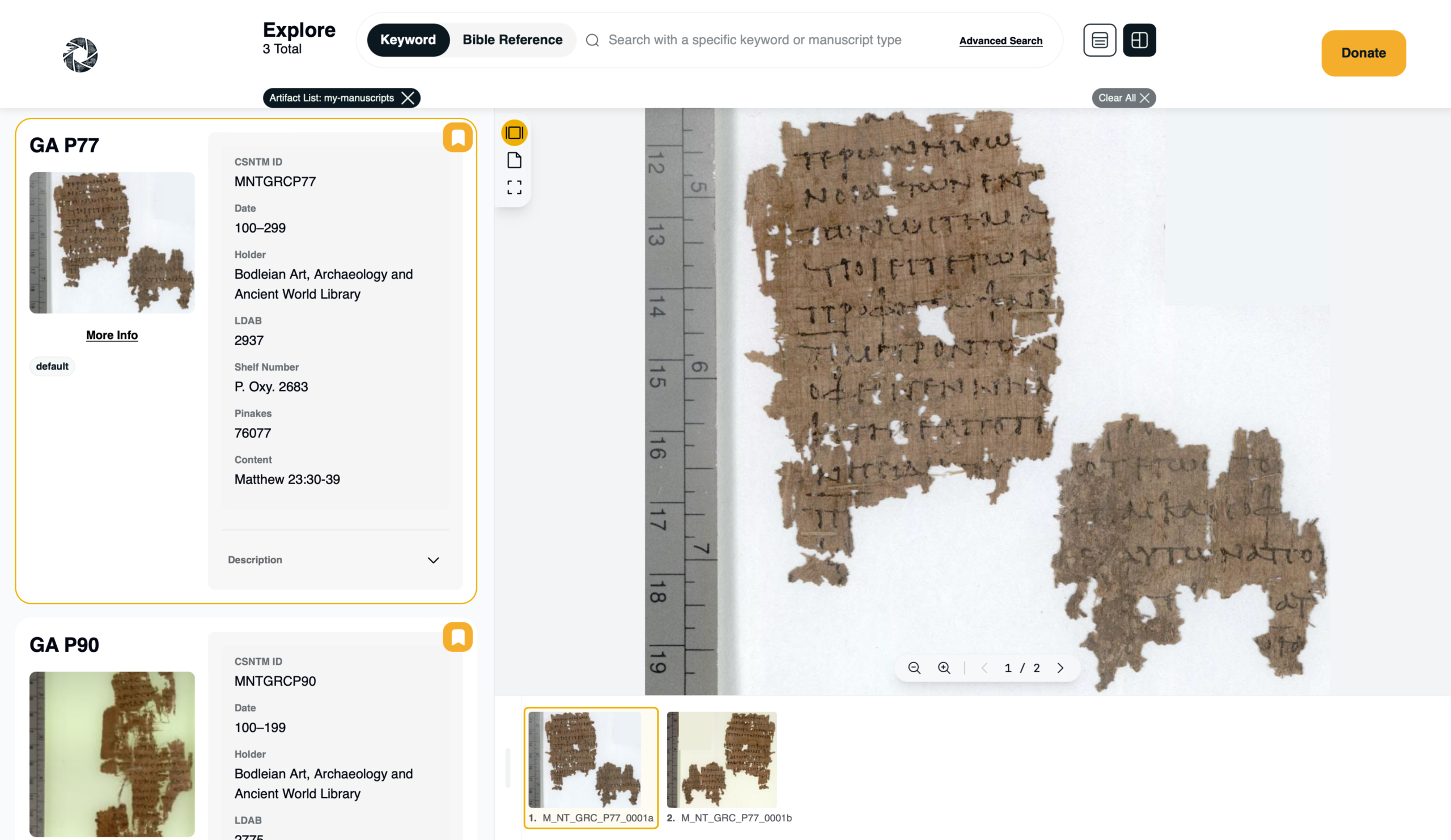
One of the most useful features of the new CSNTM Digital Manuscript Database is the ability to create custom manuscript lists. Lists allow you to curate manuscripts for personal study, teaching, comparison, or long-term research, and return to them anytime.
This guide will walk you through how to create, view, and manage your manuscript lists.
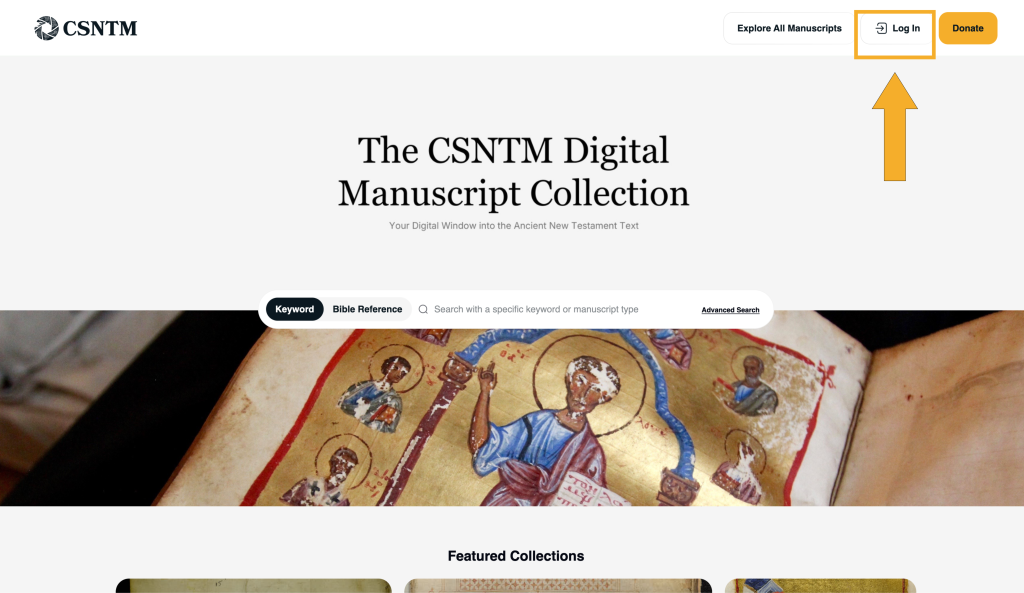
Log In to Access Lists
To use custom manuscript lists, you must be logged in.
- Log in to your existing CSNTM account, or
- Create a free account if you’re new to the database
Once logged in, you’ll be able to save manuscripts and manage your lists across sessions.
Adding Manuscripts to a List
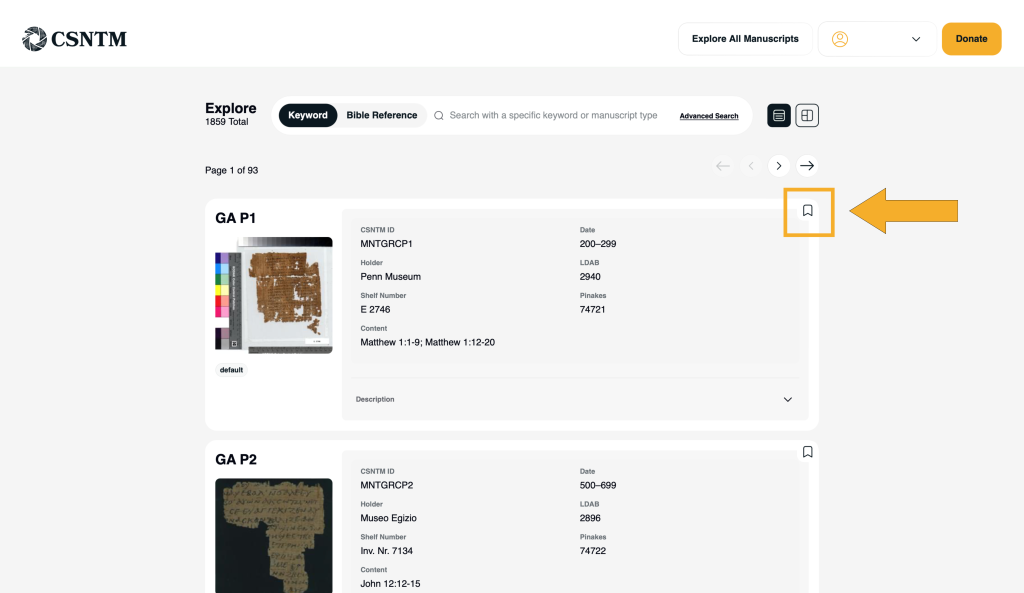
You can add manuscripts to a list directly from your search results or while browsing the manuscript index.
- Locate the manuscript you want to save.
- Click the bookmark icon in the top-right corner of the manuscript card.
Adding Manuscripts to a List
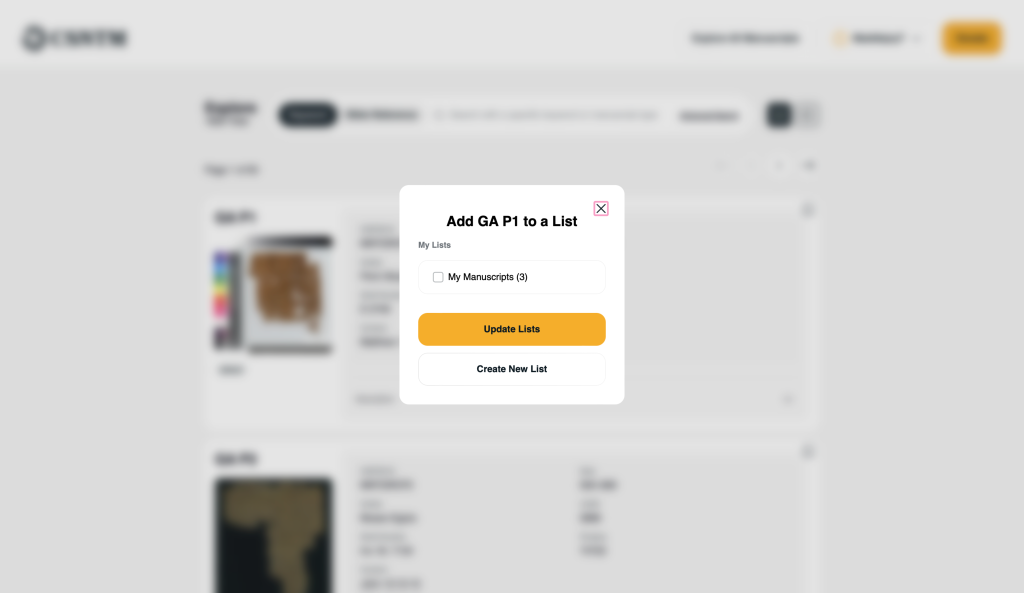
When prompted, choose one of the following:
- Add the manuscript to an existing list, or
- Create a new list
The manuscript will be saved automatically to your selected list(s).
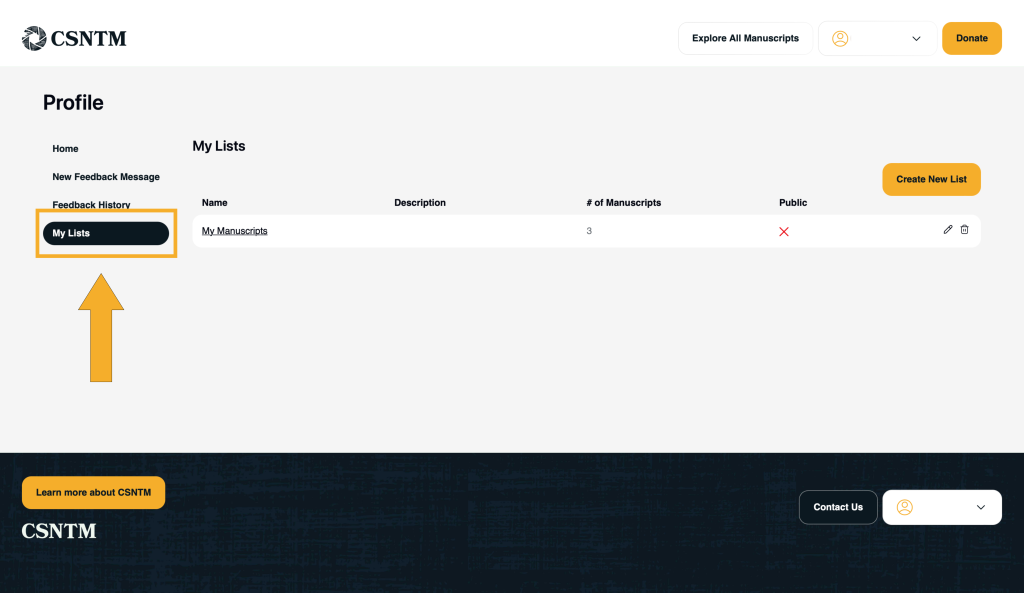
Option 1: Viewing Your Saved Lists
All of your saved manuscript lists can be accessed from the left-hand navigation menu on your profile page.
- Click My Lists in the left-hand menu on your profile page.
- Select a list name to view all manuscripts saved to that list.
Each list opens in its own dedicated view, showing every manuscript you’ve collected in one place.
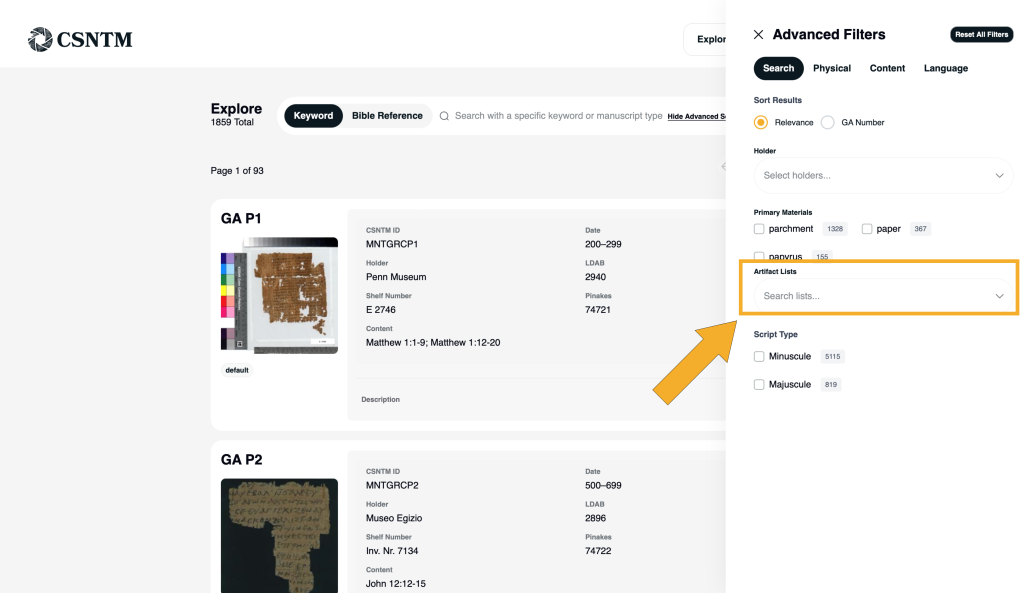
Option 2: Viewing Your Saved Lists
The quickest way to access your saved lists is through the Advanced Filters panel.
- Click the Artifact Lists drop-down, where you will see your lists and other public lists.
- Select a list name to view all manuscripts saved to that list.
Each list opens in its own dedicated view, showing every manuscript you’ve collected in one place.
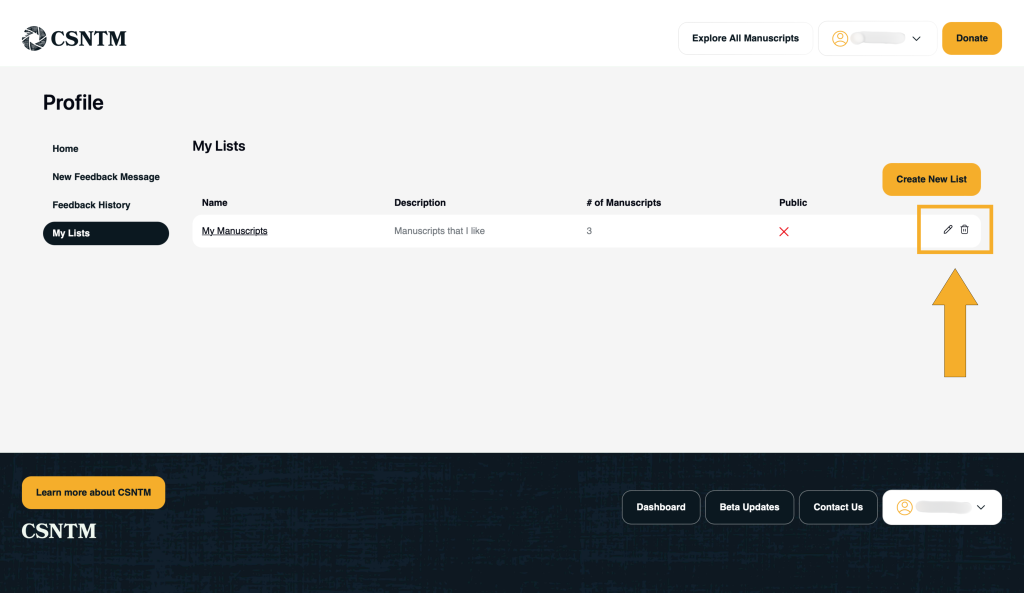
Editing and Managing Lists
From the My Lists view, you can easily manage your collections:
- Remove manuscripts you no longer need
- Rename or edit lists
- Delete entire lists when they’re no longer relevant
- Enable public access to lists
These tools give you full control over how your manuscripts are organized.
Why Use Manuscript Lists?
Custom lists are designed to support real research workflows. You might use lists to:
- Build a personal study collection over time
- Group manuscripts for a specific passage or book of the New Testament
- Prepare materials for a class or lecture
- Track manuscripts for ongoing textual comparison
What to Do Next
Once you’ve created a manuscript list, we recommend viewing it in Interactive View. This allows you to visually scan, compare, and switch between manuscripts more efficiently.
Together, these tools provide a flexible and efficient environment for engaging directly with the manuscript tradition of the New Testament.